Connect securely
Sign in to BossBack with Google or Microsoft. Your BossBack credentials are never entered into the WordPress plugin.
Install the BossBack WordPress plugin, connect your site, approve the information BossBack can use, and add Answers without manually pasting installation code.
The plugin is currently distributed directly by BossBack and is not yet listed in the WordPress.org plugin directory.
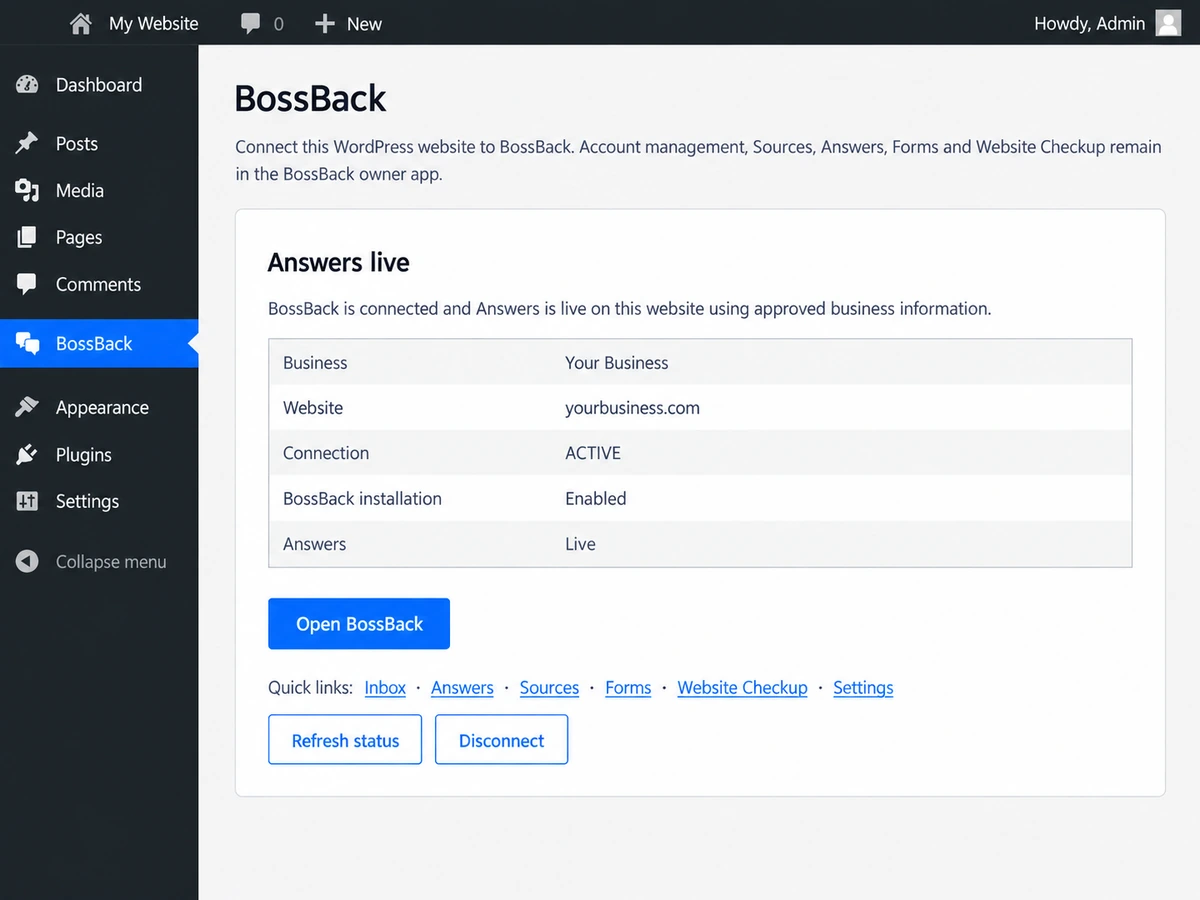
Built for the website you already have
The WordPress plugin is intentionally lightweight. Your business information, Sources, Answers settings and customer activity remain managed in BossBack.
Sign in to BossBack with Google or Microsoft. Your BossBack credentials are never entered into the WordPress plugin.
The plugin helps BossBack confirm that the WordPress site belongs to the account being connected, without asking you to configure DNS.
BossBack scans your website and lets you review the information Answers is allowed to rely on before it becomes approved knowledge.
Once your Sources are approved, enable Answers and the WordPress plugin takes care of adding the BossBack website integration.
How it works
You remain in control of what BossBack knows and when Answers goes live.
Download the BossBack ZIP and upload it through Plugins → Add Plugin → Upload Plugin in WordPress.
Open BossBack in WordPress and choose Connect to BossBack. Sign in with Google or Microsoft and confirm the website.
Scan the website, review the Sources BossBack finds, and approve the information that is accurate and useful for customer answers.
Turn on Answers when you're ready. The plugin installs the website integration automatically—there is no embed code to paste.
Answers you can stand behind
BossBack is designed around information your business approves, rather than letting AI improvise business facts.
When the information available to Answers does not support a response, BossBack is designed to say that the detail is not available and guide the visitor toward an appropriate next step.
Learn about BossBack AnswersAnswers responds only when the approved information supports it.
Install the plugin
The plugin is downloaded directly from BossBack and installed using WordPress's built-in plugin uploader.
Keep the ZIP file intact. You do not need to extract it.
Choose Upload Plugin at the top of the page.
Select the downloaded ZIP, install it, and activate the plugin.
Choose Connect to BossBack and follow the guided setup.
WordPress FAQ
Not yet. BossBack for WordPress is currently distributed directly from bossback.ai. A WordPress.org listing may be added later.
No. BossBack sign-in happens on the BossBack application using Google or Microsoft. The plugin does not ask you to enter a BossBack password in WordPress.
No. Once the WordPress site is connected, the plugin handles the BossBack website integration automatically.
No. BossBack works with the WordPress website you already have. It does not replace WordPress, your theme, your hosting provider, or your existing website content.
BossBack remains the main place to manage Sources, Answers, conversations and other BossBack capabilities. The WordPress plugin provides connection status and quick links without recreating the full BossBack owner application.
Yes. The WordPress plugin includes a disconnect option. Removing the connection stops the plugin from loading the BossBack website integration.
BossBack for WordPress
Install the plugin, approve the information BossBack can use, and decide when Answers goes live.